
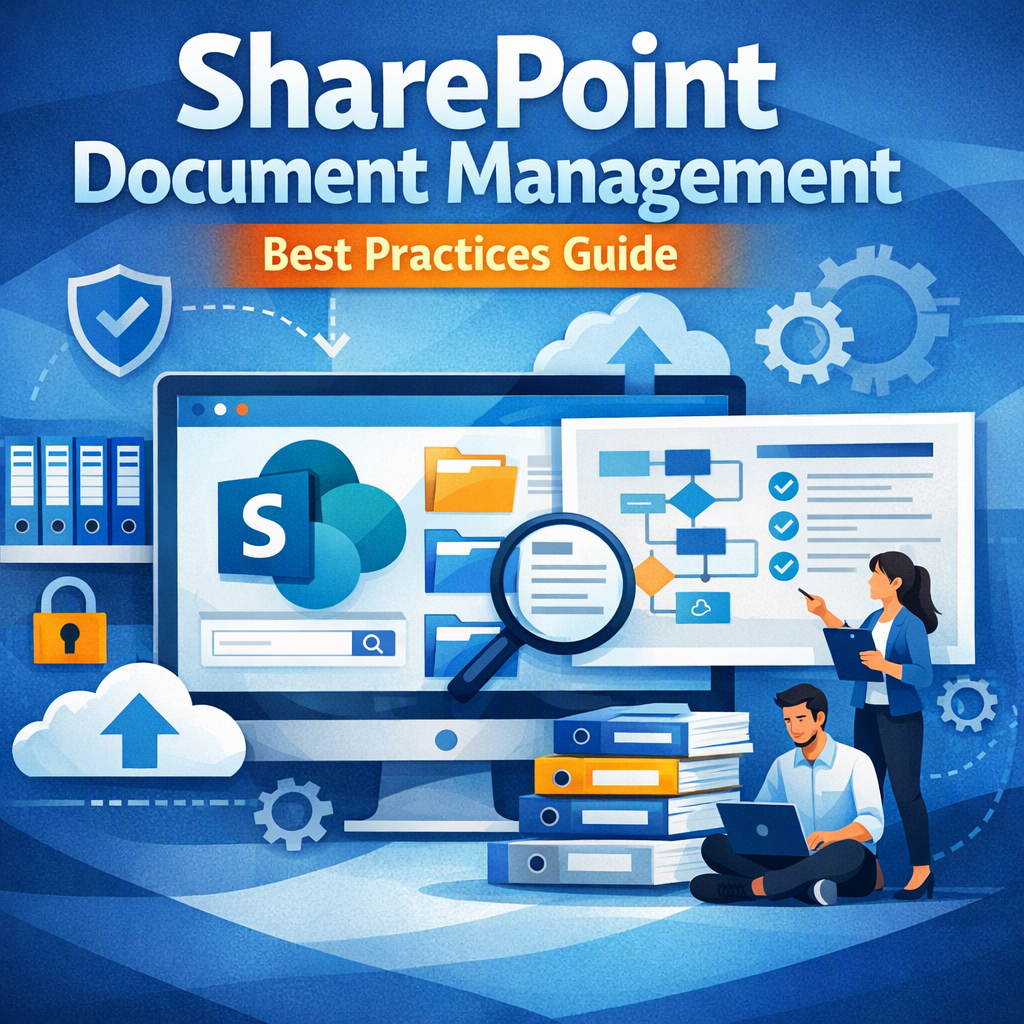
SharePoint Document Management: A Practical Guide for Modern Teams
Managing documents across a growing organization can quickly become chaotic: multiple versions, duplicate files, lost attachments, and siloed information. SharePoint document management offers a powerful, centralized way to store, organize, secure, and collaborate on content—especially when combined with tools like Microsoft Teams, OneDrive, and Power Automate.
This guide explains how SharePoint document management works, how to set it up correctly, and best practices you can implement right away. You’ll also see how “code creators”—from low-code power users to full developers—can extend SharePoint with automation and custom solutions.
What Is SharePoint Document Management?
SharePoint document management is the practice of using SharePoint sites and libraries to:
- Store documents in a central, secure place
- Control access with permissions and policies
- Track versions and approvals
- Search and discover information quickly
- Automate repetitive processes
SharePoint can serve as a full document management system (DMS) and is often used to:
- Replace network file shares
- Standardize team or department file storage
- Manage contracts, policies, SOPs, and project files
- Support compliance and audit requirements
Because SharePoint is part of Microsoft 365, it integrates tightly with:
- Teams for collaboration
- OneDrive for personal and offline sync
- Office apps (Word, Excel, PowerPoint) for co-authoring
- Power Platform for automation and low-code apps
Microsoft’s official SharePoint overview provides a high-level view of what’s possible.
Key Features of SharePoint Document Management
1. Document Libraries
A document library is where your files live. Think of it as a smart folder with:
- Structured columns (metadata)
- Version history
- Custom views
- Permissions
Examples of libraries:
- “Contracts” library in a Legal site
- “Project Documents” in a PMO site
- “Policies & Procedures” in a HR site
Code creators and power users often customize libraries using:
- JSON view formatting
- Column formatting
- Content types and templates
This transforms basic storage into a tailored document solution.
2. Metadata and Views
Instead of relying only on folders, SharePoint encourages metadata—fields that describe a document.
Common metadata fields:
- Department
- Document Type (Policy, Contract, Proposal)
- Status (Draft, In Review, Approved)
- Owner or Responsible Person
- Project Name or ID
You can then build views to filter, sort, and group documents:
- “My Drafts” (Created By = [Me], Status = Draft)
- “Approved Policies” (Status = Approved, Type = Policy)
- “Contracts expiring this quarter” (Expiry Date within next 90 days)
This structure helps users find documents without needing to know the exact folder path.
3. Version History and Co-Authoring
Every change in SharePoint can be tracked via version history:
- View previous versions
- Restore an older version
- See who changed what and when
With Office integration, multiple users can also co-author documents in real-time from Word, Excel, or PowerPoint—directly in the browser or desktop apps.
This eliminates the “v1_final_final_reallyfinal.docx” problem.
4. Permissions and Security
SharePoint document management supports fine-grained control:
- Site-level permissions (Owners, Members, Visitors)
- Library-level permissions (e.g., confidential libraries)
- Item-level permissions (specific documents)
You can also integrate with:
- Microsoft 365 Groups and Azure AD security groups
- Sensitivity labels (e.g., Confidential)
- Data Loss Prevention (DLP) policies
For compliance-heavy environments, these features are crucial.
Learn more from Microsoft’s security and compliance documentation.
5. Workflows and Automation
Code creators—from low-code builders to pro developers—can dramatically enhance SharePoint document management through automation:
- Power Automate flows for approvals
- Automatic notifications on changes
- Auto-tagging documents based on rules
- Integration with external systems (CRM, ERP)
Common workflows:
- Document approval (Draft → In Review → Approved)
- Contract renewal reminders
- Automatic filing based on metadata or form submissions
Developers can also use:
- SharePoint REST API
- Microsoft Graph API
- Azure Functions and Logic Apps
This turns SharePoint into a hub integrated with other enterprise systems.
Types of SharePoint Document Management Scenarios
1. Team Collaboration Sites
For everyday work, teams use SharePoint Team Sites connected to Microsoft 365 groups.
Typical setup:
- A “Documents” library synced to Teams
- Folders or metadata per project/client
- Shared access for team members
Use cases:
- Project files
- Meeting notes
- Working documents and drafts
Internal link example: If you’re also managing teams and communication, you may want a structured plan for your collaboration tools and meetings; you can take inspiration from “Guides and checklists” that many organizations publish under a “Resources” or “Help & Support” section, similar to how learn.microsoft.com structures its content.
2. Departmental and Intranet Sites
Departments like HR, Finance, and Legal often need more structured document management:
- HR Policies
- Employee Handbooks
- Legal Contracts
- Financial Reports
These typically use:
- Strict metadata (Policy Type, Region, Effective Date)
- Approval workflows for publishing
- Read-only access for most users
SharePoint communication sites and hub sites can tie these together into a cohesive intranet, where each department has its own structured libraries.
3. Records Management and Compliance
Organizations with strict compliance needs often use SharePoint for records management:
- Retention labels and policies
- Immutable records (e.g., WORM-like behavior)
- Audit logs and eDiscovery
For example:
- Emails or documents tagged as “Record”
- Automatic deletion or retention after a certain period
- Legal hold scenarios
The records management features are documented in detail on Microsoft’s records management page.
How to Set Up SharePoint Document Management (Step-by-Step)
Step 1: Define Your Information Architecture
Before creating libraries, decide:
- What sites do you need? (e.g., HR, Finance, Projects)
- Which document types will you manage?
- Which metadata fields are important?
- Who needs access to what?
Work with stakeholders to create a simple information architecture:
- Sites (high-level areas)
- Libraries (groupings of content)
- Content types and metadata
Code creators often help here by mapping out models and designing content types that can be used across libraries and sites.
Step 2: Create Document Libraries
For each site:
- Go to Site contents → New → Document library.
- Name it clearly (e.g., “Policies”, “Contracts”, “Project Documents”).
- Configure library settings:
- Versioning
- Check-out/check-in (if needed)
- Content approval
You may create separate libraries for:
- Draft vs. Published content
- Confidential vs. general-access documents
Step 3: Configure Metadata and Content Types
- Open the library → Settings → More library settings.
- Add columns (e.g., Choice, Date, Person, Lookup).
- (Optional) Create content types like:
- Policy Document
- Contract
- Project Plan
Content types can have:
- Specific templates
- Required metadata
- Unique workflows
Power users and low-code creators can manage these via the SharePoint UI; developers can automate creation via PnP PowerShell or provisioning templates.
Step 4: Design Views for Usability
Create views that make sense for users:
- All Documents (default) with major metadata fields
- By Status (grouped by Draft, In Review, Approved)
- By Department or Region
- My Documents (filter Created By = [Me])
You can also use JSON view formatting for highlighting important states—for instance, highlighting documents expiring soon in red. Code creators often write this JSON or share reusable snippets across sites.
Step 5: Set Permissions and Governance
At the site and library level:
- Use SharePoint groups (Owners, Members, Visitors).
- Assign permissions based on roles (HR Staff, Managers, All Employees).
- Avoid excessive item-level permissions (they’re hard to manage and can impact performance).
Governance tips:
- Create a clear ownership model (site owners vs. content owners).
- Document naming conventions and folder/metadata guidelines.
- Train users on where to save documents and how to classify them.
Step 6: Implement Workflows and Automation
Use Power Automate to automate processes such as:
- Approval workflows:
- New document created → send to manager for approval → set Status to Approved → notify team
- Notifications:
- Send reminder 30 days before a contract’s expiry date
- Routing and filing:
- When a form is submitted, create a document or file it in the correct library based on metadata
Code creators can expose these workflows through:
- Buttons in document libraries
- Power Apps integrated in SharePoint pages
- Custom Teams tabs referencing SharePoint content
Developers can extend this by:
- Custom connectors
- Integration with line-of-business systems
- Advanced business rules in Azure Functions
Best Practices for Effective SharePoint Document Management
1. Start Simple, Then Evolve
Don’t launch with a complex structure that nobody understands. Begin with:
- A few key libraries
- Essential metadata
- One or two critical workflows
Gather feedback and iterate.
2. Prefer Metadata Over Deep Folder Structures
Deep nested folders mimic old file shares and limit flexibility. Use:
- Flat or shallow folder structures
- Metadata for classification
- Views to simulate different “folder” perspectives
Example:
Instead of
/Projects/2024/ClientA/Contracts/Legal/Final
Use:
- Library: Project Documents
- Metadata:
- Year: 2024
- Client: Client A
- Document Type: Contract
- Department: Legal
- Status: Final
You can then create views for “By Client”, “By Year”, “By Department”, etc., without duplicating documents.
3. Train Users and Communicate Standards
User adoption is crucial. Provide:
- Short how-to guides and videos
- Clear rules on where to save documents
- Examples of good metadata usage
Consider an internal “How we use SharePoint” reference page linked from your intranet home.
4. Use Templates for Consistency
Create and use:
- Document templates (contracts, reports, proposals)
- Site templates for departments or projects
- Library templates with preconfigured metadata and views
Code creators can package these as reusable provisioning templates, making it easier to deploy standardized structures across the organization.
5. Monitor and Maintain
Regularly review:
- Storage usage
- Permissions and access patterns
- Aging or obsolete content
Use:
- SharePoint Admin Center reports
- Microsoft 365 usage analytics
Over time, archive old content to dedicated archive libraries or sites with appropriate retention policies.
How Code Creators and Developers Extend SharePoint Document Management
SharePoint becomes significantly more powerful when code creators—both low-code builders and professional developers—extend its core capabilities.
Low-Code and No-Code Builders
Using Power Apps, Power Automate, and built-in SharePoint capabilities, low-code creators can:
- Build custom forms for document submission
- Implement approval workflows with rich notifications
- Create dashboards showing document status and workload
- Auto-generate documents from templates and data
Example: An HR team could have a Power App where managers submit promotion requests; the app stores documents in SharePoint, tags them correctly, and triggers an approval flow.
Pro Developers
Developers can go deeper with:
- SPFx (SharePoint Framework) web parts and extensions
- Integration via Microsoft Graph and REST APIs
- Custom APIs and microservices in Azure
Common advanced scenarios:
- Integration with CRM (e.g., creating contract records in both SharePoint and Dynamics 365)
- Automated classification and tagging using AI (e.g., Azure Cognitive Services)
- Custom search experiences and dashboards
For technical documentation, see SharePoint development documentation.
Conclusion
SharePoint document management provides a robust, scalable way to organize and control your organization’s content. When you:
- Design a clear information architecture
- Use metadata and views intelligently
- Apply permissions and governance thoughtfully
- Leverage workflows and automation
- Empower code creators and developers to extend the platform
…you move from chaotic file storage to a structured, searchable, and compliant document ecosystem that supports real collaboration.
Start small, standardize your approach, and iterate. Over time, SharePoint can become the backbone of your organization’s digital documentation strategy.
FAQs: SharePoint Document Management
What is the difference between SharePoint and OneDrive for document management?
SharePoint is designed for team and organizational document management, with shared libraries, metadata, workflows, and permissions. OneDrive is primarily for personal files and drafts. A common pattern is: create and work on a draft in OneDrive, then move it to a SharePoint library when it becomes a shared document.
Do I need deep technical skills to use SharePoint for document management?
No. Basic setup—creating libraries, adding metadata, and setting views—requires no code. However, code creators and developers can enhance your solution with automation, integrations, and custom components to handle more complex scenarios.
How does SharePoint handle document version control?
Every change can create a new version (major and optionally minor). You can view version history, compare changes, restore older versions, and see who edited the file and when. Versioning settings are configurable per library.
Is SharePoint secure enough for sensitive documents?
Yes, when configured correctly. SharePoint uses Microsoft 365’s security and compliance framework, including permissions, encryption, sensitivity labels, DLP policies, and audit logs. It’s widely used in regulated industries, but you should work with IT and security teams to design appropriate controls.
Can SharePoint integrate with other business systems?
Yes. Through Power Automate, Microsoft Graph, and APIs, SharePoint can integrate with CRM, ERP, ticketing systems, and more. Code creators and developers can build flows and custom connectors to synchronize metadata, trigger workflows, or surface SharePoint documents inside other business applications.